
What To Do If No Sound In Audible Mental Training
Some users have encountered the situation where they do not hear any voice while attempting to run an audible mental training session. In most cases the reason for this issue is the browser and the underlying operating system have lost communication. Here a few simple steps you can try to get audibles working again.
All of our comments pertain to using the Google Chrome browser. If you are using another browser we highly recommend that you download the free Chrome browser.
Step1:
Assuming you are using the Google Chrome browser, let’s start going through our checklist. If audibles was working for you and suddenly stopped working for you, the first thing we should try is completely shutting down your pc. Please do a full shut down, i.e. power completely off, and not a restart. The most common issue is when for some reason the browser looses communication with your operating system audio driver. Shutting down your system for at least 10 seconds and then powering back on will reload all of the system drivers. Relaunch Chrome and try to run audibles. For most this will alleviate the problem. This situation usually arises when we run our pc for long time periods without a system shutdown and restart.
Step2:
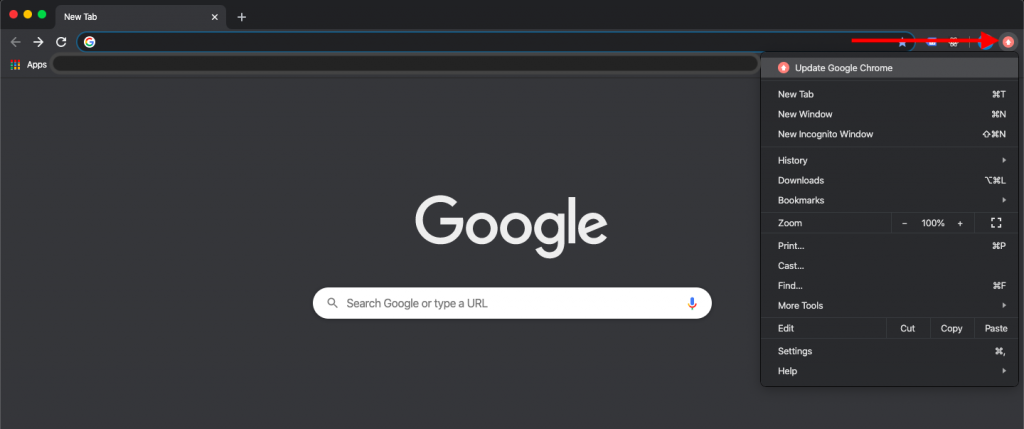
The second most common reason for not hearing voice in audibles is when you Chrome browser software needs to be updated. Most users will set Chrome to automatically update but for an update to be installed Chrome must be restarted. If you have an update waiting to be installed you will likely see the update icon in the upper right hand corner. Clicking on it will show a menu with the first option Update Google Chrome. Simply click the Update Google Chrome to update your browser. After the update we also recommend that you do a system shutdown to make sure communications with your operating system are loaded properly.
Step3:
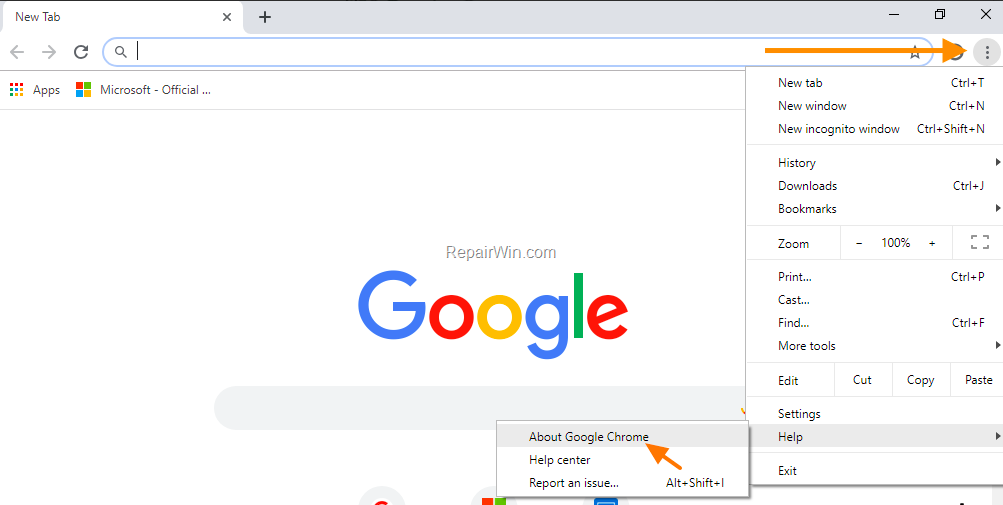
If there are no Chrome updates, you may need to update your operating system software first before you will see any new Chrome updates. In this case first update your operating system software and then relaunch Chrome. If you don’t see Chrome’s update icon in the upper right, you can check for Google Chrome Updates manually by first clicking on menu  then “help” and then “about Google Chrome”.
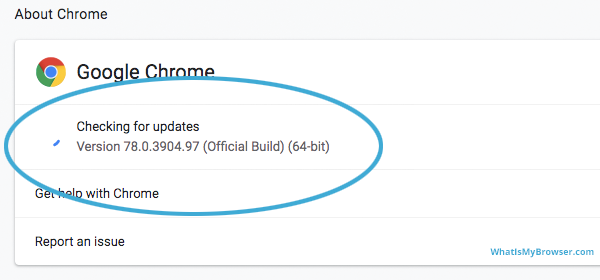
Chrome will automatically check for any updates.
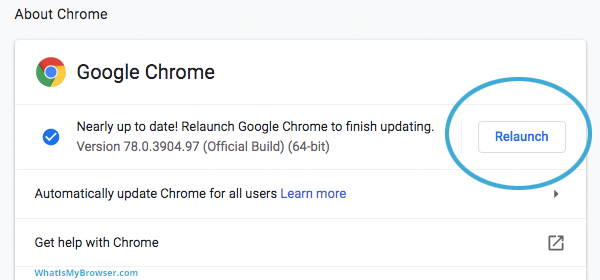
If Chrome finds an update, click the relaunch button to install the update.
Restart your Chrome browser and retry running audibles.
Leave a Reply